
Getting Started with ADB
Android Debug Bridge (ADB) is the universal command-line tool connecting your computer to Android devices. Follow this complete guide to install the toolchain, unlock debugging, and verify your connection.
01 What is ADB?
ADB operates as a client-server architecture comprised of three independent components:
Runs on your computer when you type any adb command in terminal.
A background daemon on host port 5037 managing transport routes between client and devices.
Runs continuously on the target Android hardware or emulator background as a system service.
02 Install ADB (Android Platform-Tools)
Install the official platform-tools package using your operating system package manager:
sudo apt install adb fastboot # Or: sudo pacman -S android-tools brew install android-platform-tools winget install Google.PlatformTools 03 Enable Developer Options
Developer Options is hidden by default in modern Android versions to prevent accidental modifications.
- Open your Android device Settings app.
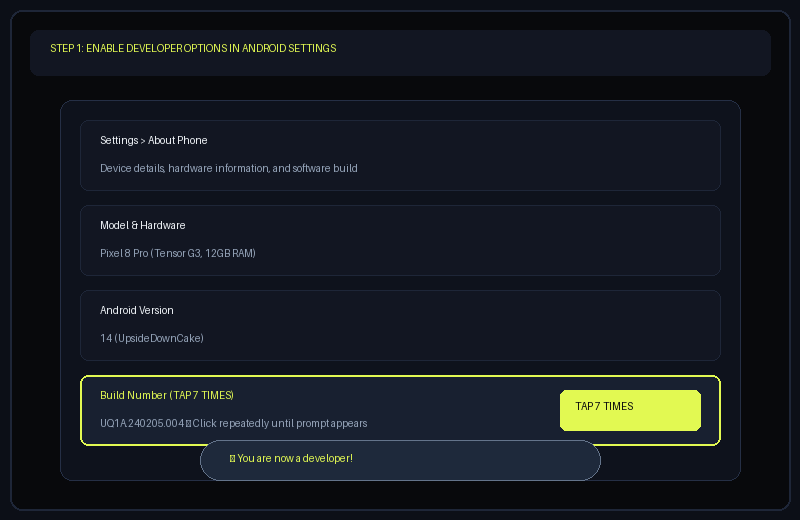
- Scroll down and tap About phone (or About tablet / About device).
- Find Build number (often located under Software information on Samsung devices).
- Tap Build number 7 consecutive times until the toast notification "You are now a developer!" appears.
- Enter your device PIN or pattern if prompted.
04 Enable USB Debugging & Trust RSA Key
Once Developer Options is unlocked, enable the debugging bridge and authenticate your host workstation:
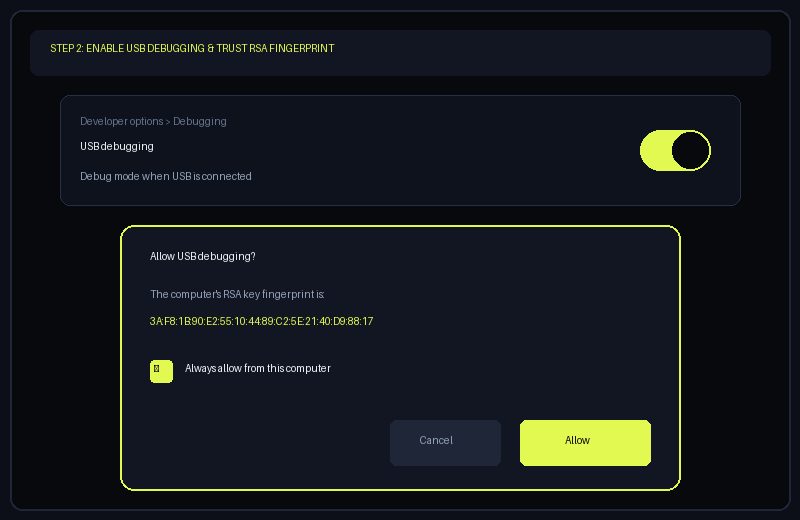
- Go back to Settings > System > Developer options (or directly in Settings root on some skins).
- Scroll down to the Debugging header.
- Toggle USB debugging to the ON position.
- When you plug in the USB cable to your computer, an "Allow USB debugging?" modal prompt will appear on your phone screen.
- Check "Always allow from this computer" and tap Allow.
05 Connect Android Hardware to Workstation
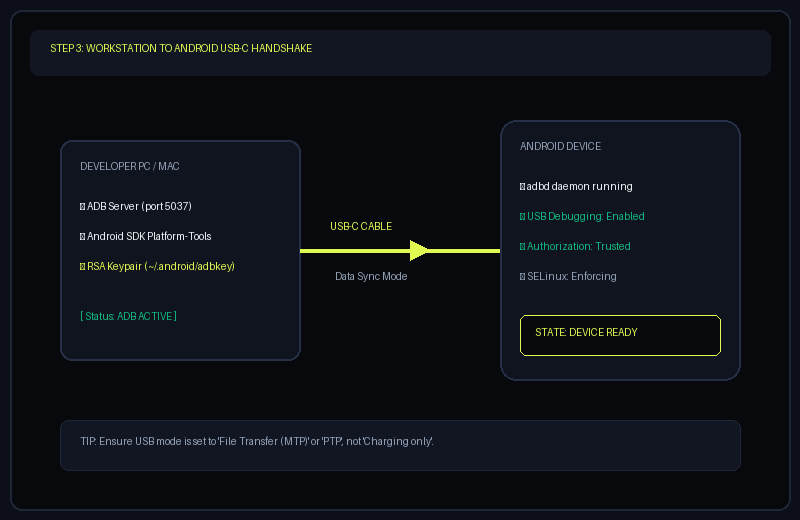
Connect your device using a high-quality data-capable USB-C cable (not charge-only). Set the USB configuration notification on your phone from "Charging only" to "File Transfer (MTP)".
06 Verify Device Detection (adb devices)
Open your terminal on your computer and query attached devices:
adb devices -l 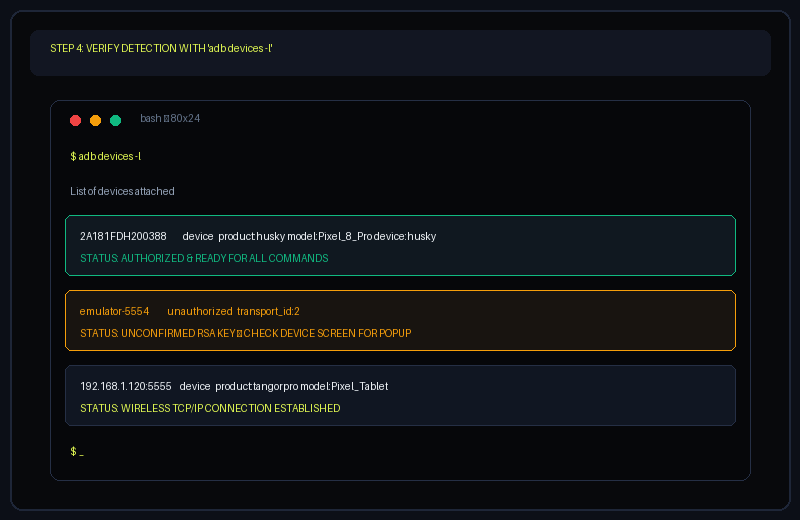
07 Troubleshoot Device Detection Problems
Issue A: Status shows "unauthorized"
Your computer's RSA key hasn't been approved yet. Unlock your phone's lock screen and tap "Always allow". If no prompt appears, run:
adb kill-server && adb start-server Issue B: "List of devices attached" is empty
- Ensure USB cable supports data transfer (some cheap cables are charging-only).
- On Windows, install the OEM Google USB Driver via Device Manager.
- On Linux, add the Android udev rule to
/etc/udev/rules.d/51-android.rules. - Try another USB port directly on motherboard (avoid unpowered USB hubs).
08 Wireless ADB Basics (Cable-Free Debugging)
Once initial USB pairing is complete, you can detach the cable and debug over your local Wi-Fi network:
adb tcpip 5555 adb connect <phone_ip_address>:5555
On Android 11+, you can also use native Wireless Debugging > Pair device with pairing code and execute adb pair <ip>:<port> <code> completely without any USB cable.